Every YouTube video has a thumbnail, the still image you see before you press play. Saving it is useful when you need a back-up of your own artwork, a cover image for a blog post about your video, or a reference while designing a new one. YT Saver does it in a few seconds.
On a computer
- Open the video on YouTube and copy its address from the bar at the top of the browser. You can also right-click the video and copy its link.
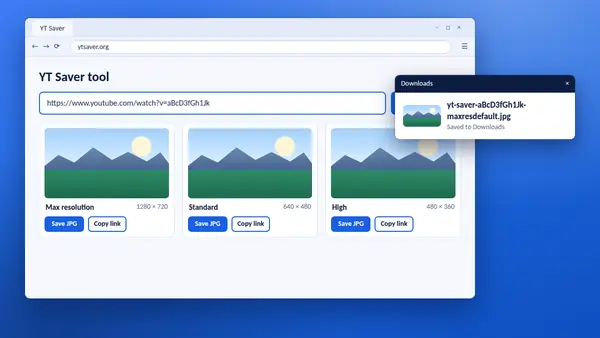
- Open the YT Saver tool and paste the link into the box.
- Select Get thumbnail. The thumbnail appears in five sizes.
- Choose JPG or WebP from the format menu.
- Select Save under the size you want. The image goes to your Downloads folder.
On a phone
- In the YouTube app, tap Share under the video, then Copy link.
- Open YT Saver in your browser and paste the link.
- Tap Get thumbnail, then tap Save under a size.
If your phone opens the image in a new tab instead of saving it, press and hold the image and choose the save option.
Which size to pick
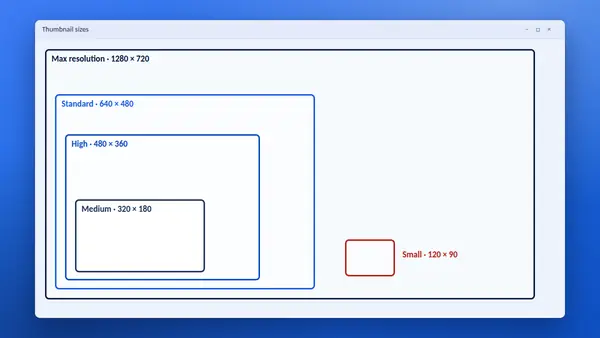
- Max resolution, 1280 × 720: the best quality. Choose this whenever it is available.
- Standard, 640 × 480: a good fallback for documents and slides.
- High, 480 × 360: exists for every video.
- Medium and Small: for lists, previews and anywhere file size matters.
When Max resolution is missing
Older videos and videos uploaded in low quality do not have a 1280 × 720 thumbnail. YT Saver marks that size as not available. Use Standard or High instead.
Copy the image link instead
Each size also has a Copy image link button. It copies the address of the image on YouTube's image server, which is handy for a spreadsheet or a note where you do not need the file itself.
File names
Saved files are named with the video ID and the size, so a folder of thumbnails stays easy to sort.
A word on permission
A thumbnail belongs to the person who made it. Saving the artwork from your own videos is always fine. For someone else's video, ask before you reuse the image, and never pass it off as your own.