Sending someone a forty-minute video with the message "watch from about halfway" wastes their time. A timestamp link opens the video at the exact second you choose.
The quick way
- Paste the video link into the YT Saver tool and select Get thumbnail.
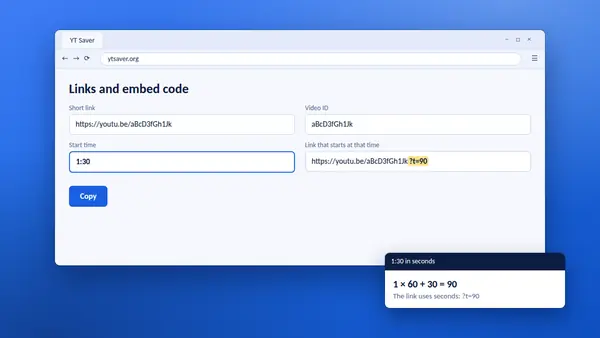
- Scroll to Links and embed code.
- Type the start time in the Start time box, for example
1:30. - Copy the link shown beside it.
You can type the time as minutes and seconds, as hours, minutes and seconds such as 1:02:03, or as plain seconds.
How the link works
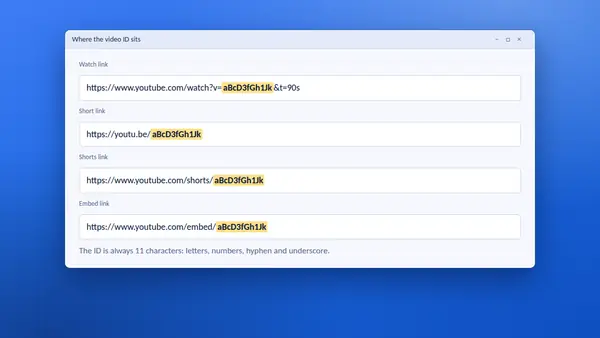
A timestamp link is an ordinary video link with a small addition at the end. The addition is t= followed by the start time in seconds.
- One minute thirty is 90 seconds, so the link ends in
?t=90. - Ten minutes is 600 seconds, so the link ends in
?t=600.
YT Saver does the arithmetic for you and uses the short youtu.be form, which is tidy enough for a message or a slide.
If your link already has a time
When you paste a link that already contains a start time, YT Saver reads it and fills in the Start time box. Change the number to move the starting point.
Doing it on YouTube itself
On a computer, YouTube's Share window has a Start at tick box. It works well, but you have to pause the video at the right place first. Typing the time into YT Saver is quicker when you already know it.
Where timestamp links help
- Teaching: send students straight to the part of a lecture that answers the question.
- Support: point a customer to the step in a tutorial they are stuck on.
- Meetings: put a link to the key moment of a recording in the notes.
- Social posts: share the highlight, not the introduction.
Timestamps in embedded videos
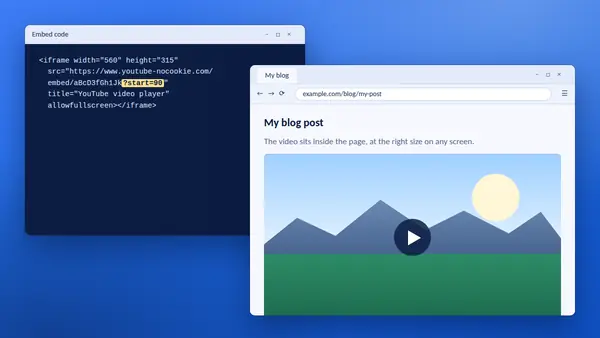
An embedded player uses a slightly different addition, start=. The embed code from YT Saver includes it automatically when you enter a start time.
Check before you send
Open the link once yourself. Starting two or three seconds early is kinder than cutting into the middle of a sentence.